

Videos
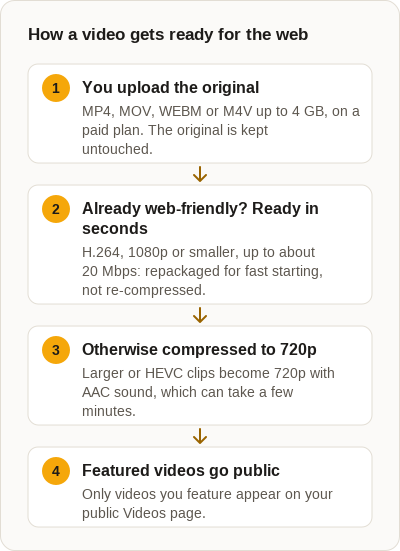
Video comes with every paid plan, not Free. Upload MP4, MOV, WEBM or M4V files, up to 4 GB each, on the Videos page of your admin. FrameRoost keeps your original and makes a web-friendly version for smooth playback. Only videos you feature appear on your site’s public Videos page, next to the photo gallery.
Uploading
Section titled “Uploading”On the Videos page of your admin, click Upload videos and pick one or more MP4, MOV, WEBM or M4V files up to 4 GB each. That’s 4,000,000,000 bytes, which Windows shows as about 3.7 GB. Large files go straight to storage from your browser, so keep the page open until each upload finishes.
Each file gets a progress bar under Uploads, and a tick when it’s done. Clear finished tidies the list. A browser has up to 24 hours to finish an upload, which is plenty for a 4 GB file on a slow connection. If you close the page part-way, that video isn’t added — upload it again.
FrameRoost checks your storage before each upload starts. A video that would take you past your plan is refused with a message saying how much you’re using, and isn’t added.
New videos go to the end of your Videos page’s order.
Are new videos public?
Section titled “Are new videos public?”New videos are not public. Your public Videos page only shows videos you feature — click the heart on a video to feature it, and again to take it out. Until you feature one, visitors see a short “check back soon” note there instead. While you’re signed in, the public page offers All videos (admin preview) so you can check everything there.
Getting ready for the web
Section titled “Getting ready for the web”Camera files are often huge, which makes them stutter on slower connections. After a video uploads, FrameRoost prepares a web-friendly version in the background and switches to it once it’s ready. Your original is kept untouched.
- Clips that are already web-friendly are ready in seconds. That means H.264 video with standard 8-bit color, AAC sound (or none), 1080p or smaller either way up, and a bitrate up to about 20 Mbps. They’re repackaged for fast starting, not re-compressed.
- Other clips are compressed to 720p (1280×720, or 720×1280 for upright video) with AAC sound, which can take a few minutes for longer videos. Smaller clips are never enlarged.
- A poster frame from about one second in, and the video’s length, are added first, so they show even while the rest is still being prepared.
Until its web version is ready, a video’s tile in your admin shows Processing, and your site plays the original in the meantime.
Example: two clips from the same morning
Section titled “Example: two clips from the same morning”You upload two clips of a heron hunting. The first is 1080p H.264 from your phone at about 15 Mbps: it’s repackaged and ready in seconds. The second is 4K, or recorded as HEVC (H.265): it’s compressed to 720p, which takes a few minutes. Meanwhile your site serves the second clip’s original, until the 720p version takes over.
If processing fails
Section titled “If processing fails”FrameRoost tries each video up to three times, a minute apart, and stops any single attempt after 30 minutes. A video that still fails stays on your site, which keeps serving its original.
The Tools panel on the Videos page opens by itself while videos are queued or have failed. Under Video processing it shows how many are queued, processed in the last 24 hours, and failed, with the errors. Click Process older videos to try the failed ones again. The same button catches up videos uploaded before this existed.
Tags, captions and order
Section titled “Tags, captions and order”Like photos, videos can be tagged, filtered and dragged into order — the order in the admin is the order on your public Videos page. Click the pencil on a video to add a Caption and Tags, then Save. Dragging is off while a filter is on.
Visitors can filter your Videos page by tag, and by year once your featured videos span more than one. A video’s year is the year you uploaded it, not when it was recorded.
What counts toward storage
Section titled “What counts toward storage”The original stays, so a compressed video stores its original plus its web version and poster. All of it counts toward your plan’s storage.
What videos don’t do
Section titled “What videos don’t do”- Your watermark applies to photos only. Videos play as you uploaded them.
- Private galleries hold photos only, so a video can’t be added to one.
Deleting
Section titled “Deleting”Deleting a video removes its original, web version and poster, and frees up the storage. You’re asked to confirm first, because it can’t be undone. Delete all videos removes every video along with its caption and featured status.
What happens to my videos if I move to Free?
Section titled “What happens to my videos if I move to Free?”If your site moves to the Free plan (for example after cancelling), your existing videos stay on your site and keep playing. You just can’t upload new ones: the Upload videos button goes away. See Plans & billing.
Troubleshooting
Section titled “Troubleshooting”“Unsupported file type. Use MP4, MOV, WEBM, or M4V.” Export or convert the clip to one of those first.
“File is too large.” The file is over 4 GB. Trim it or export it at a lower bitrate.
“Video isn’t included on the Free plan.” Pick a paid plan in Billing.
A message asks you to upload the file again. The upload was interrupted or expired. Start it again from Upload videos.
A video isn’t on your site. The video isn’t featured yet. Click its heart.